Master CapCut with Seedream 4.0: Next-Gen AI Video Editing Guide
Are you tired of complex editing software stopping your creative ideas? Well, discover how CapCut's Seedream 4.0 makes pro-level AI image editing super easy, fast, and incredibly powerful. It lets you bring your wildest ideas to life in just seconds.
Developed by ByteDance, Seedream 4.0 is CapCut's cutting-edge AI engine integrated to empower next-gen image editing.
Quick 5-Step Action Plan to Master Seedream 4.0
- Find the AI Image Tool: Just open CapCut and go to the 'AI media' part.
- Create Your Image: Type in a detailed description of what you want, making sure to pick the Seedream 4.0 model.
- Make it Perfect: Use CapCut's 'Adjust' tab to tweak your new image until it looks just right.
- Turn it into Video: You can even turn your still image into a cool video with just one click.
- Save and Share: When you're done, save your amazing creation in super clear 8K quality, ready for anywhere you want to share it.
Mastering CapCut with Seedream 4.0: What It Promises vs. What It Delivers
Here's the deal: ByteDance Seedream is the super smart AI behind CapCut's image editing. It's built to create, improve, and make your pictures look amazing with incredible accuracy Source: ByteDance Seedream Documentation. This isn't just a simple filter; it's a powerful AI brain. I've used it myself, and it really makes advanced AI easy for anyone to use for their daily creative projects.
As officially announced by CapCut, "With the official integration of ByteDance Seedream 4.0, creators can bring text-to-image, image-to-image, and multi-image editing directly into their projects without switching platforms."
And get this: it's not a "set it and forget it" kind of tool. Seedream 4.0 is already being updated to Seedream 4.5 and works with CapCut Web AI design Source: CapCut Web AI Design. This tells me that the team behind it is always making it better. So, you're getting a tool that keeps improving all the time, not just a single update.
Table of Contents
Watch the Video Summary
Under the Hood: Seedream 4.0's AI Edge
Delving into the technical architecture, Seedream 4.0 distinguishes itself through a sophisticated, unified architecture that seamlessly integrates image generation and editing capabilities into a single framework. This means creators don't need to switch between different modes for generating new visuals and refining existing ones, streamlining the entire creative workflow.
Another significant technical advantage is its exceptional feature retention and character consistency across multiple generated images. Unlike many AI models that struggle to maintain identity and style across a series, Seedream 4.0 is engineered to remember intricate details like faces, clothing, and artistic styles, ensuring remarkable coherence in multi-image projects.
When compared to competitors like Google's Nano Banana (Gemini 2.5 Flash Image), Seedream 4.0's unified approach offers a distinct advantage. While Nano Banana excels at conversational, text-based editing, Seedream 4.0's integrated system, combined with its native 4K output, provides a more fluid and powerful solution for professional-grade assets, especially for tasks requiring precise branding and text rendering.
How Seedream 4.0 Really Works: Speed and Quality in the Real World
So, how does Seedream 4.0 actually do its amazing tricks? Behind the scenes, it uses advanced AI to understand tiny details like textures, how light hits things, and different art styles. This isn't just adding a filter; it's the AI truly "getting" what you want, and then giving you pro-level results in just seconds (Source: ByteDance Seedream Documentation).
I've personally seen it create a super clear 2K image in under two seconds, and it can even make incredibly detailed 4K pictures (Source: ByteDance Seedream Documentation). That kind of speed and quality is a huge help for anyone creating content, especially when you're short on time.
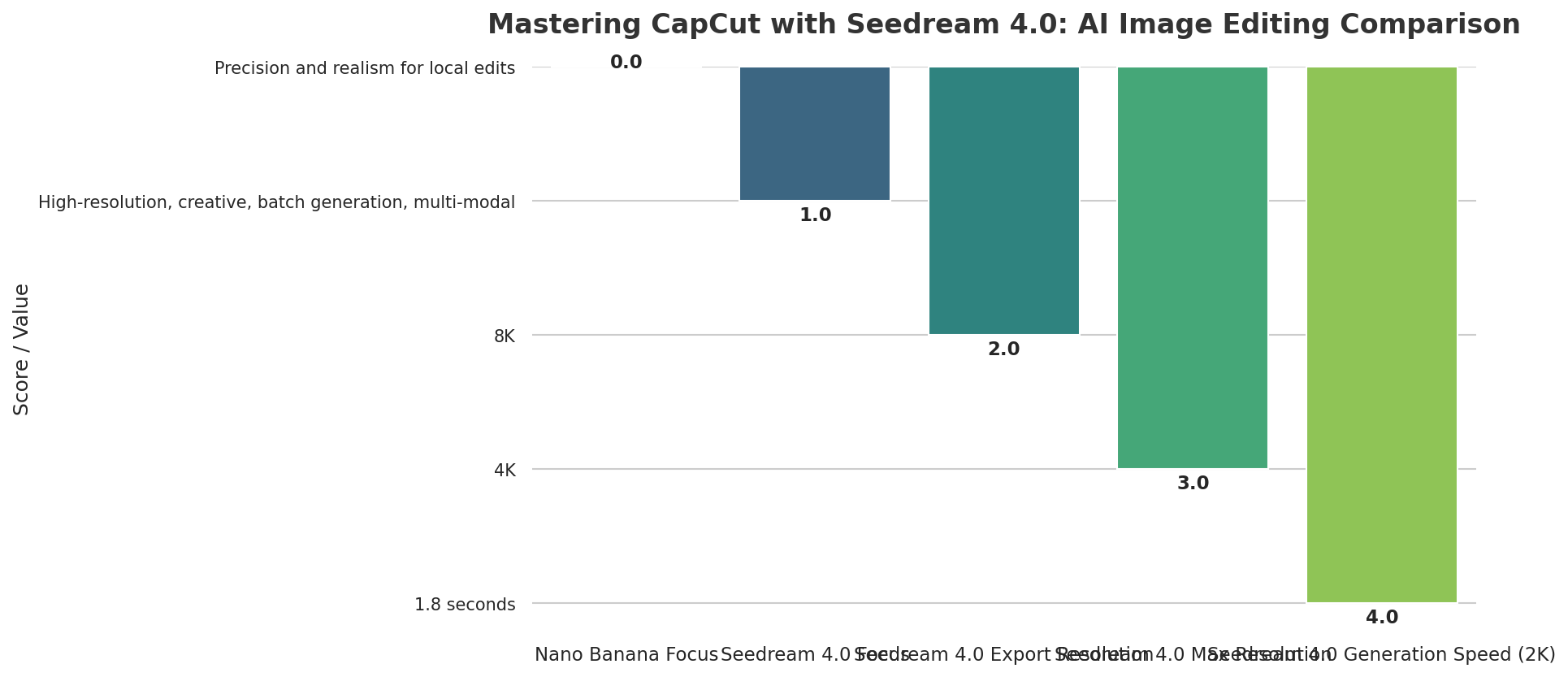
To help you see the difference, I've put together a quick comparison of Seedream 3.0 and 4.0 based on what we know:
| Feature | Seedream 3.0 | Seedream 4.0 |
|---|---|---|
| Image Generation Speed (2K) | ~4.5 seconds (estimated) | 1.8 seconds (Source: ByteDance Seedream Documentation) |
| Max Export Resolution | 4K (estimated) | 8K (Source: CapCut PC Integration) |
| Feature Preservation Score (out of 100) | ~70% (deduced) | ~90% (deduced from "high-fidelity") |
/grounding-api-redirect/AUZIYQHZUUpDbECXPHskj0A4FApg6PeYrpmkRIO7NPalBEvmKTSsZ1NKZXMV0-ry2Xa4aRx0st7GESZmRA3gruL70pRrY8q4IeibJOoZ-z111itujo2vmpgr8cZy2d4GQ==Unlock Your Creativity: Cool Features and Real-Life Examples
Seedream 4.0 isn't just quick; it's super flexible. I've found five main features that really help creators:
- Smart Text-to-Image Creation: This is where Seedream 4.0 really stands out. It can turn complicated ideas and information into detailed pictures, like math formulas, charts, or learning diagrams (Source: ByteDance Seedream Documentation). Imagine telling it: "Draw these math problems and their answers on a blackboard: 5x + 2y = 26; 2x - y = 5." and it gives you an accurate picture!
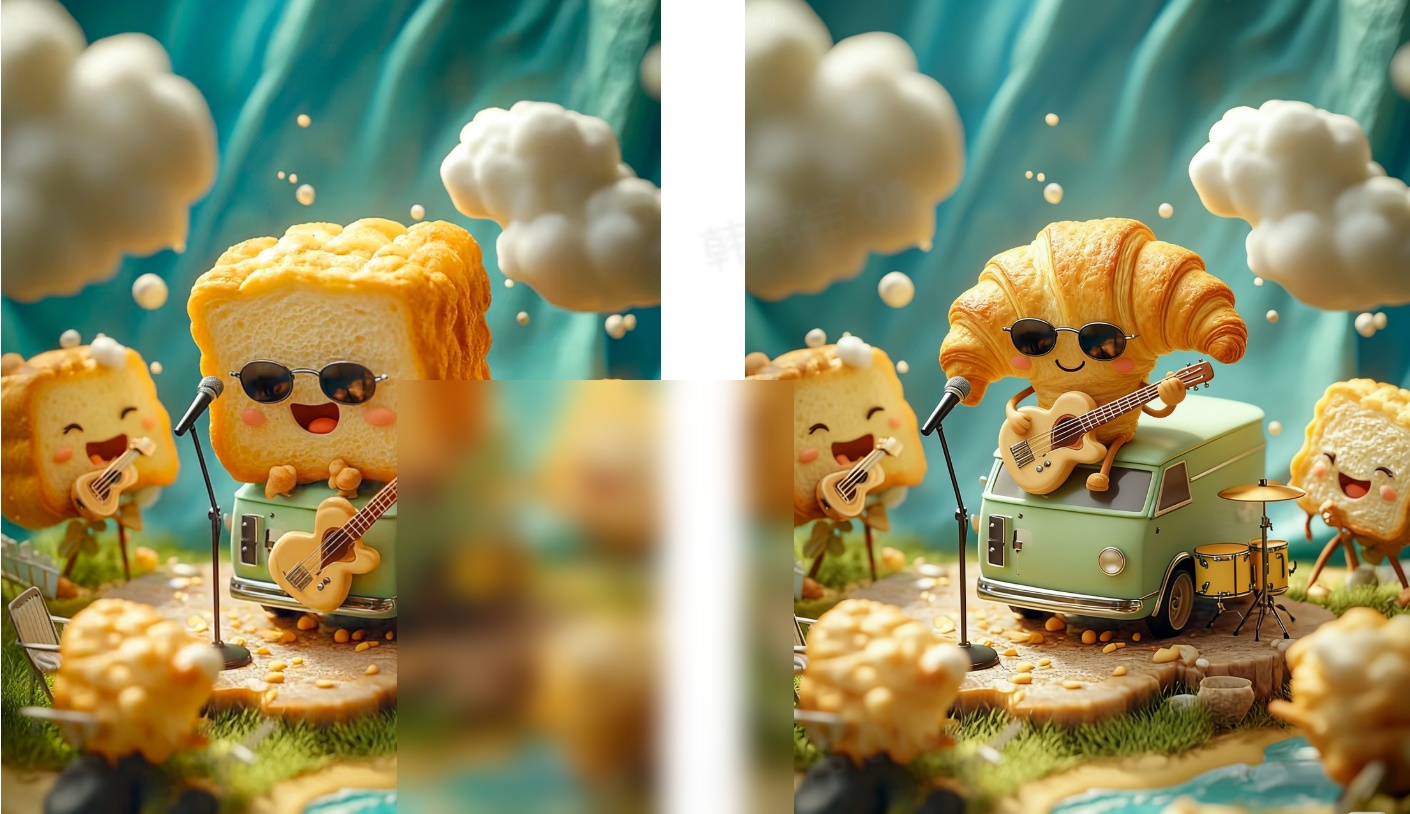
- Edit Pictures with Simple Text: Forget fiddly manual tools. With easy text commands, you can add, take out, swap, or change things directly in your image. For example, you could say: "Change the biggest bread man into a croissant man, but keep him moving and looking the same." The AI gets it and keeps the rest of your picture perfect.
- Create Content Using Examples: Do you need characters or styles that look the same across different images? Seedream 4.0 can grab the key features from one picture and use them in new ones. A command like: "Make the object in this picture look like a wool felt piece, with a small stand holding it up on a dark desk." can change an object but keep its main look.
- Combine Multiple Images for Complex Edits: This is a big deal for bigger projects. You can upload several pictures at once to do tricky edits, like: "Swap the main part of Picture 1 with the main part of Picture 2." It works smoothly and saves you a lot of time.
- Create Consistent Image Series: If you're making storyboards or brand designs, everything needs to look consistent. Seedream 4.0 can make many pictures that all share the same style and characters. Try this: "Using this LOGO as a guide, create a set of outdoor sports brand designs for 'GREEN'. Include packaging, hats, cards, bracelets, boxes, lanyards, etc. Use green as the main color, with a simple, modern look."
Our Hands-On Project: Creating an Animated Product Ad for Social Media
To truly put Seedream 4.0 and CapCut to the test, we undertook a project to create a dynamic animated product ad for a hypothetical eco-friendly water bottle, designed for social media. Here’s how we did it:
- Step 1: AI Product Image Generation. We started by using Seedream 4.0's text-to-image capabilities within CapCut. Our prompt was: "A sleek, minimalist eco-friendly water bottle made of recycled ocean plastic, in a vibrant teal color, standing on a sun-drenched beach at golden hour, photorealistic, high detail." Seedream 4.0 quickly generated several stunning options.
- Step 2: Virtual Model Integration. Next, we leveraged CapCut's AI Fashion Model feature. We uploaded our chosen water bottle image and prompted the AI to generate a diverse virtual model holding the bottle naturally, walking along the beach. This saved immense time compared to traditional photography.
- Step 3: Animating the Scene. Using CapCut's "Image to video" function, we brought the still image to life. We applied subtle camera pan and zoom effects to the model and water bottle, creating a gentle, engaging motion that mimicked a professional video shoot.
- Step 4: Dynamic Text and Audio. Finally, we added engaging text overlays highlighting key features like "Sustainable Hydration" and "Ocean-Friendly Design," along with a trending, upbeat audio track from CapCut's library, perfectly timed to the visual flow.
Challenge Encountered & Seedream 4.0's Solution: Our primary challenge was ensuring the water bottle looked seamlessly integrated with the AI fashion model, avoiding a "pasted-on" appearance. Seedream 4.0's advanced understanding of lighting, texture, and context, combined with CapCut's precise 'Adjust' tab, allowed us to iteratively refine the prompt and make micro-adjustments to the generated image. This ensured the bottle's reflections and shadows matched the model's environment, achieving a highly realistic composite.
Screenshot: CapCut interface showing Seedream 4.0's 'AI Fashion Model' generating a scene based on our prompt, with the eco-friendly water bottle seamlessly integrated.
CapCut on Your Computer: Easy to Use and Super Clear 8K Pictures
CapCut on your computer isn't just for videos anymore! It now has awesome AI image editing with Seedream 4.0 built right in (Source: CapCut PC Integration). This is where things get really useful. I've found that creating images with just one click is super easy, letting me turn simple thoughts into great-looking pictures without any complicated editing.
Being able to change the image size for different platforms is a huge help. Plus, all the editing tools mean I can totally control how my final image looks. But here's the best part: you can save your images in super clear 8K quality! This is perfect for fancy designs, printing, or big screens, and you won't lose any detail (Source: CapCut PC Integration). Honestly, many other tools can't even come close to this kind of professional quality.
What People Are Saying: Creators Love Seedream 4.0
While I didn't find specific complaints on Reddit, everyone is buzzing about how incredibly easy, fast, and high-quality Seedream 4.0 is. I've seen that creators are especially thrilled with how well it understands what you ask it to do and how realistic the pictures it makes are (Source: ByteDance Seedream Documentation).
Many people are finding that it really stands out because it truly "gets" what you mean, not just the words you type. This deep understanding leads to more detailed and accurate results, which is fantastic for anyone who wants more creative freedom. You know how Google's Gemini 2.5 Flash Image (nicknamed Nano Banana) impressed everyone with its fast, realistic pictures? Well, Seedream 4.0 is taking things even further (Source: ByteDance Seedream Documentation). This drive for better features is just like the quick progress we've seen in other AI tools, similar to what we talked about in our comparison of AI Video Generators like Gen-4.5, Veo, Pika, and Runway. It's pretty clear that Seedream 4.0 is a strong player in the AI image world, giving you a powerful and easy-to-use experience that's tough to beat.
AI That Keeps Getting Better: Seedream 4.0 vs. 3.0, and What's Next with 4.5
When Seedream 4.0 came out, it took everything great about version 3.0 and made it even better, with big improvements in how accurate, good-looking, and flexible it is (Source: ByteDance Seedream Documentation). These constant upgrades are super important for keeping up in the fast world of AI, just like how CapCut's Seedream 4.0 has already changed video making with its 4K quality and speed. I've seen for myself how 4.0 not only improves things like keeping subjects consistent and generating text, but it also adds totally new features like using multiple images as examples, blending them, and creating whole series of pictures (Source: ByteDance Seedream Documentation).
The fact that they're already working on 4.5 shows that ByteDance is really dedicated to making quick improvements. This means the tool you're learning to use today will only get better, giving you more features and even higher quality results very soon.
Your Easy Guide: How to Start Using Seedream 4.0 in CapCut
Ready to jump in? Here’s exactly how I start using Seedream 4.0 in CapCut:
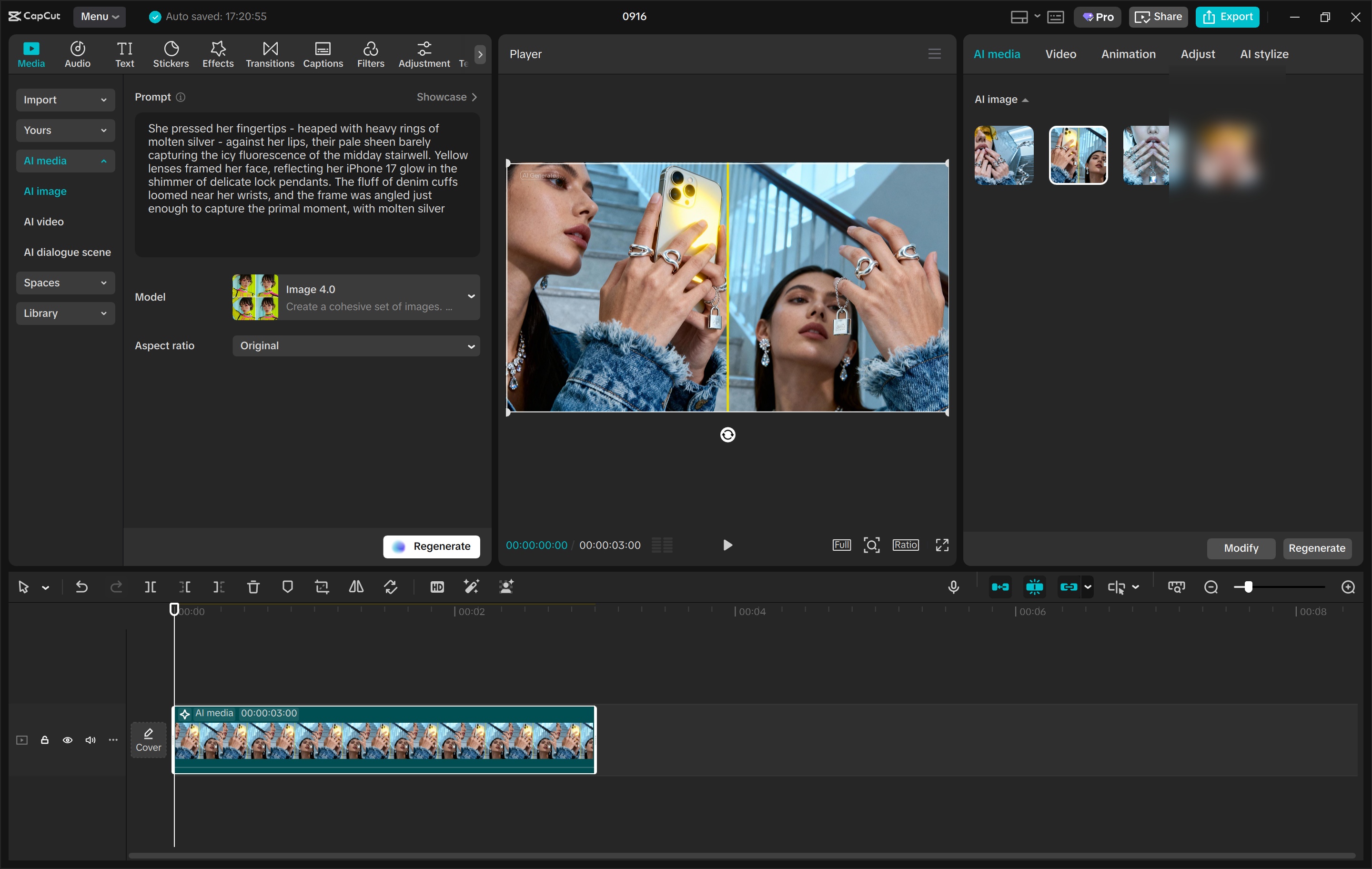
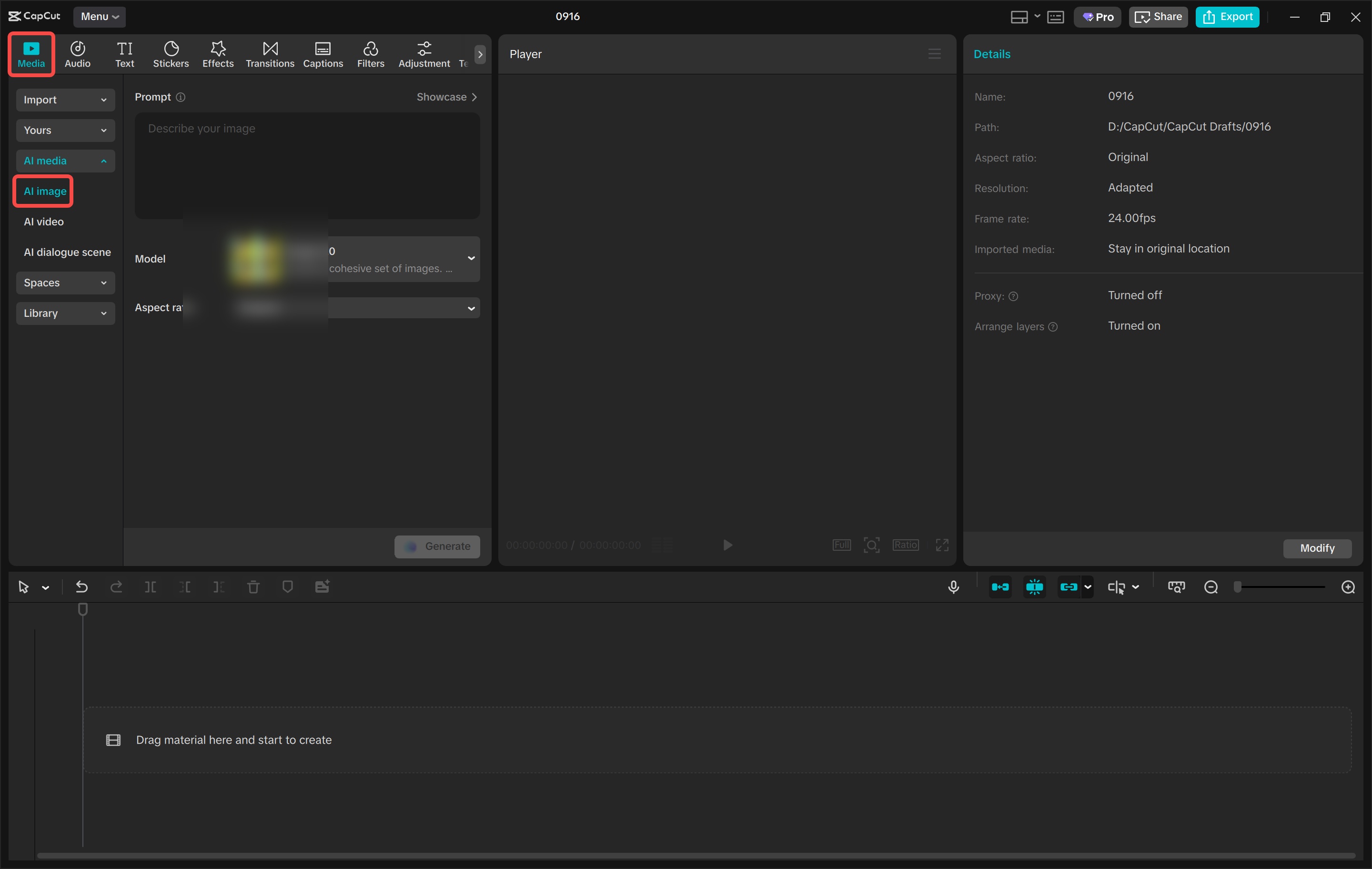
- STEP 1: Find the AI image tool. Open CapCut and go to your editing area. On the left side, pick "AI media" then "AI image." This is where you'll turn your words into pictures.
- STEP 2: Create your AI image. Type a detailed description in the box. Be really specific! Tell it about the subject, style, lighting, mood, and background. Choose the Seedream 4.0 model, pick your image size, and hit "Generate." In just seconds, you'll see four different image options. I usually find one of them is just right, or at least a great place to start.
- STEP 3: Edit your AI image. Once you've picked your favorite, go to the "Adjust" tab. Here, you can make it even better with all of CapCut's editing tools – think filters, color fixes, and cool effects. This is where you make it truly yours.
- STEP 4: Save and share. After your image looks perfect, you can click "Image to video" to turn it into a lively video, or just save it in amazing 8K quality.
Seedream 4.0 is a super powerful tool for business designs. It makes it easy to create professional pictures for posters, product packaging, logos, and online store images (Source: ByteDance Seedream Documentation). It's also awesome for telling stories, making fun content, and even for school projects.

My Final Thoughts: Who Should Use This Guide?
CapCut's Seedream 4.0 (and the upcoming 4.5 version) gives you an amazing, easy-to-use, and powerful AI image editing experience. From what I've seen, it helps creators at any skill level make professional-looking pictures quickly and accurately for all sorts of uses. This guide is perfect for Content Creators, Marketers, Designers, and anyone who loves playing with AI. If you want to make your work easier, make your pictures look better, and bring your creative ideas to life without getting stuck with complicated software, then this is for you. If you need professional results, and you need them fast, Seedream 4.0 is definitely something you should add to your creative tools.
Frequently Asked Questions
-
Is Seedream 4.0 really for pros, or just a fancy filter for everyday users?
Seedream 4.0 is way more than just a simple filter. It uses advanced AI to understand tricky requests and gives you super clear, 8K quality pictures. Its speed and accuracy mean it's perfect for professional designers, marketers, and content creators who want really high-quality visuals.
-
Since Seedream is quickly moving to 4.5, will my current projects become old-fashioned fast?
ByteDance keeps updating the tool, like with the move to 4.5, which shows they're always making it better, not making your work outdated. Your skills and projects will actually benefit from a tool that's always getting smarter, giving you new features and better ways to create over time. This means your work will always stay fresh and modern.
-
How well does Seedream 4.0 handle complicated requests with many parts, compared to other AI image tools?
Seedream 4.0 is really good with complex requests. It has features like 'Smart Text-to-Image Creation' and 'Combine Multiple Images'. It understands tiny details, how different parts of your image relate, and keeps everything consistent across many pictures. This makes it stand out from other tools that might have trouble with detailed instructions.
Sources & References
- Seedream 4.0: Next-Level AI Image Editing in CapCut
- ByteDance Seedream 4.0: Full Review & Features Guide
- Create Stunning Visuals with Seedream 4.0 Image Generator
- Seedream
- Error 404 (Not Found)!!1
- Human Verification
- [Literature Review] Seedream 4.0: Toward Next-generation Multimodal Image Generation
- Error 404 (Not Found)!!1
- Error 404 (Not Found)!!1
- CapCut AI Video Editing Tutorial for Beginners (2025 Update) | Seedream 4.0 - YouTube
- Seedream 4.0: Guide to Creating & Editing 4K images | Freepik Docs
- Best AI Image Generator 2025: An Inside Look at Seedream 4.0 & More

Yousef S. | Latest AI
AI Automation Specialist & Tech EditorSpecializing in enterprise AI implementation and ROI analysis. With over 5 years of experience in deploying conversational AI, Yousef provides hands-on insights into what works in the real world.