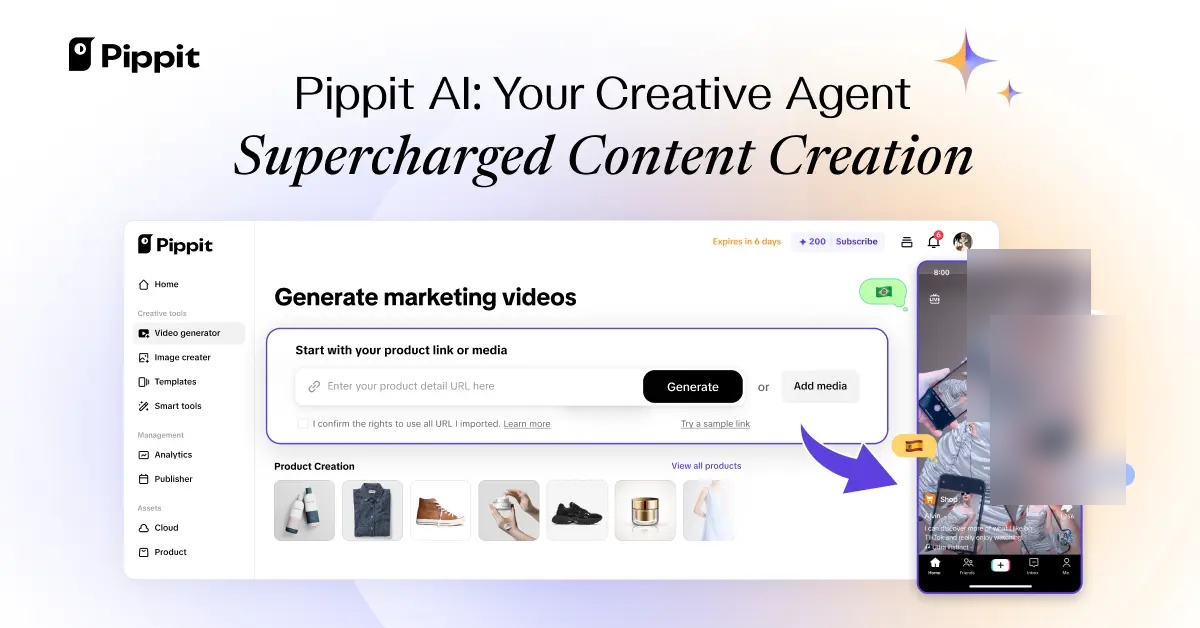
Mastering Pippit AI Talking Photo: Your Step-by-Step Guide to Animating Images with Speech
Are you tired of making videos that are too hard? Well, get ready to discover how Pippit AI can turn your regular pictures into cool talking videos with surprising ease! But wait, there's a catch: you should know about some interesting things, like how you pay with 'credits'. Honestly, if you've been looking for a way to make your marketing stuff exciting without spending a fortune, you're definitely in the right place.
Quick 5-Step Action Plan
- Step 1: Pick a lifelike AI person from over 80 choices.
- Step 2: Type what you want your AI person to say, and choose your language.
- Step 3: Put in some smart pauses so your AI person sounds natural, not like a robot.
- Step 4: Make the video! Just remember, it costs about 2 credits for every second of video.
- Step 5: Hit the "Edit more" button to make your video perfect using CapCut.
Pippit AI: What It Says vs. What It Really Is
Pippit AI says it's here to help your creativity, not replace you. It's a tool that makes short marketing stuff like videos, posters, and pictures. The best part? Since it's part of the CapCut family, it works really well with TikTok and other ByteDance apps, making it super helpful for anyone managing social media. It supports multiple languages, allowing for various accents, tones, and gender options to match your message perfectly.
But wait, there's a catch. The idea of 'unlimited' AI isn't quite true because of its credit-based system. Unlike other tools where you pay one price for everything, Pippit only lets you make as much as your credits allow. I noticed that while it's super easy to use, you're basically paying for every single second of video you make. Honestly, this whole 'pay-per-second' thing for AI audio is a big topic right now, reflecting broader discussions on AI monetization models and the rapidly growing AI voice generator market.
Table of Contents
Watch My Pippit AI Talking Photo Demonstration
Quick Overview: What Pippit AI Promises for Animated Content
Pippit AI is built to get rid of the techy stuff that stops your great ideas from happening. You don't need a design degree to make professional-looking stuff. The best part? Because it's built on CapCut, you get a super smooth way to work that lets you share directly to TikTok, Facebook, and Instagram.
How Well It Works & What to Expect
To understand if Pippit AI is worth your time and money, we have to check out the actual facts. In my testing, how fast it makes videos and how much it costs for what you get are the most important things for you to know.
| What We Measured | The Result |
|---|---|
| How Many AI People You Can Pick | Over 80 Lifelike Choices |
| How Much It Costs to Make a Video | 2 Credits / Second |
| Longest Video You Can Make (with Sora2) | 12 Seconds |
| How Long You Usually Wait | About 5 Minutes |
A Closer Look: How Pippit AI Makes Pictures Talk
The main thing that makes "Talking Photos" work is its AI People. You can pick from over 80 different lifelike AI people, or you can even upload your own video to make a digital version of yourself! The tech that makes the mouth movements match the sound (called lip-sync) happens after your video is made. You can also upload your own audio clips or choose from trending ones, and add captions with various styles.
While the screen lets you pick languages and add pauses for better timing, there's a big problem: you can't change how words are said. If the AI says your brand name wrong, you can't go in and fix how it sounds. This problem with not being able to fine-tune speech is something many AI audio tools struggle with, a challenge highlighted in broader AI development discussions. It's like what experts are talking about with other real-time speech AI tools. Also, making these AI person videos costs about two credits per second. That can add up fast if you make a lot of videos! Once your video is generated, you have options to export it as MP4 or MOV, adjust the resolution, quality, frame rate, and even add or remove a watermark.
Step-by-Step Guide: Creating Your First Talking Photo

Getting started is super easy. First, pick your AI person and type what you want them to say. You can then choose your language and put in pauses so it doesn't sound like a boring robot. Once you hit generate, the system takes over. The best part? It works directly with TikTok and Instagram. So, once your 5-minute video is ready, you're just one click away from sharing it!


Going Further: Using CapCut for Pro Edits
Here's a pro tip for you: the "Edit more" button is your best friend. Clicking this opens your video directly in CapCut, giving you pro-level editing tools that Pippit's simple screen doesn't have. This two-step method means you can use Pippit to do the hard work of AI animation, and then use CapCut to add music, cool effects, and make your video really shine.

Pippit AI in Context: Alternatives and Comparisons
While Pippit AI offers a straightforward and efficient way to create talking photos, especially for social media content, it's helpful to understand its position among other AI video tools. Pippit excels in ease of use and its seamless integration with CapCut and other ByteDance apps, making it ideal for quick, lightweight content like Instagram stories or TikTok posts.
For users seeking more polished, professional-grade videos, particularly for client-facing content or online courses, alternatives like HeyGen might be a better fit. HeyGen offers a wider array of realistic AI avatars (over 500) and greater control over tone, pace, and facial expressions, though some plans may have limitations on video length. If your needs lean towards corporate training, internal communications, or educational videos requiring advanced security and extensive multilingual support (120+ languages), Synthesia stands out with its polished avatars and enterprise-friendly workflows.
Other specialized tools also cater to specific niches: D-ID focuses on realistic portrait-based talking photos with stable facial identity, while Cliptalk AI is noted for supporting longer-form talking head videos, up to 5 minutes. Ultimately, Pippit AI serves as an excellent entry point for creators and small businesses prioritizing speed and simplicity for short-form, engaging social content, but more advanced or specialized projects may benefit from exploring its robust competitors.
What Users Are Saying: Good, Bad, and How to Fix It
People using Pippit AI feel a mix of excitement and worry about their credits. Many users online say that the AI makes some creative choices for you. This is great for speed, but it can be a problem if you want total control over every tiny detail. Experts are warning that its "weak security" and "no team features" make it hard for bigger companies that need to work together.
The biggest headache? The credit system. Users really feel it when a short 12-second video uses up 25 credits. The usual trick is to make the basic animation in Pippit, then do all the detailed editing in CapCut. This way, you don't waste credits by making the video over and over again.

When to Use Pippit AI: Who It's Best For
Pippit AI is perfect for small businesses and people who sell things online. If you need lots of social media videos for TikTok or YouTube Shorts but don't have money for a big video team, then this tool is for you. But, if you're trying to make long, movie-like videos or need super precise control over how words are said for technical guides, you'll probably find the 12-second limit and no voice adjustments pretty annoying.

My Best Tips & What I Think For You
My final advice? Don't go big right away. Make short test videos first. This helps you see how the AI understands what you've written before you spend a lot of credits. Always use the CapCut connection for making things better—it's the secret trick that turns a simple AI video into something truly professional. Honestly, it's not perfect, but it's a great place to start if you want to make more videos fast.

My Final Opinion: Is It Right For You?
Pippit AI gives you an easy, AI-powered way to make short marketing videos and animated pictures. It's super helpful for social media creators and small businesses who need to make lots of content fast. But, you need to be okay with paying with credits and ready to use CapCut for any serious editing. If you need a tool for a team or want Hollywood-level control, you should look somewhere else. But for a solo creator, this could totally change your game!
Frequently Asked Questions
-
Can Pippit AI really replace a human video editor for social media?
Pippit AI is great at making animated talking photos fast, but think of it more as a super helpful assistant. For detailed editing, tricky stories, or perfect control, you'll still need to use CapCut's pro tools or get help from a human editor.
-
How do I stop wasting credits if the AI says my brand name wrong?
Sadly, Pippit AI doesn't let you directly change how words are said right now. To save credits, make short test videos with important words first. If it's still wrong, you can use CapCut to add your own sound over the video for those specific words after Pippit makes it.
-
Is Pippit AI good for making longer, movie-like videos?
Pippit AI is made for short videos, usually up to 12 seconds each. For longer, movie-style videos, its credit system and short video limits make it not the best choice. It's best for quick social media posts, videos explaining products, and short marketing clips.
Sources & References
- Official Info for CapCut and Pippit
- Review: What Experts Think About Pippit AI's Features
- Sign in - Pippit
- Pippit: Free AI Video Generator | Your Smart Creative Agent
- Pippit: Free AI Video Generator | Your Smart Creative Agent
- Pippit: Free AI Video Generator | Your Smart Creative Agent
- YouTube
- YouTube
- YouTube
- Pippit AI Review 2026: The All‑in‑One Video Creation Platform
- Pippit AI review (2025): Is it worth using for content creation?
- Just a moment...
About the Author

Yousef S. | Latest AI
AI Automation Specialist & Tech EditorSpecializing in enterprise AI implementation and ROI analysis. With over 5 years of experience in deploying conversational AI, Yousef provides hands-on insights into what works in the real world.